
Connect an account
Add an MT4 or MT5 login, and what to do when validation fails.
Adding an account is one form. Trademetry validates the credentials against the live broker before it commits, so you find out within seconds whether they work.
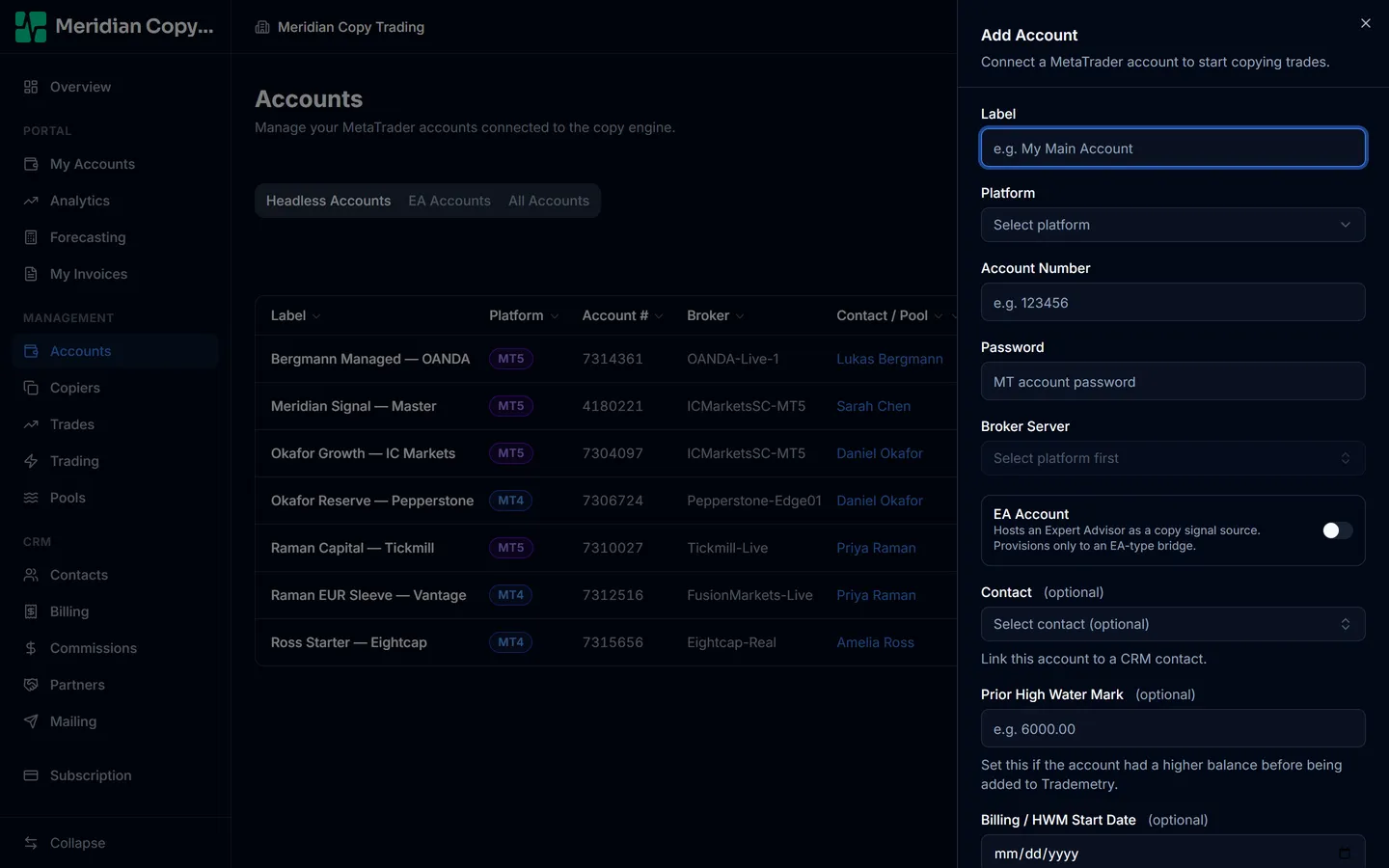
- Choose Add Account
From the Accounts page.
- Label
A name for you, not the broker — it is what appears in lists, copiers, and reports.
Okafor Growth — IC MarketsbeatsAccount 3. - Platform
MT4 or MT5. This cannot be changed later; a login belongs to one platform.
- Account number and password
The MetaTrader login number and its password. Passwords are encrypted at rest and never shown back in plain text on the form.
- Broker server
Disabled until a platform is chosen, then filtered to it. Start typing and pick from the list; if your server is not listed you can type it in full, and it is validated for real either way.
- Contact (optional)
Links the account to a person. Requires CRM add on or Billing add on; agents must set it, since an agent may only create accounts for their own clients.
- Save
Validation runs. See below for what each outcome means.
Three more fields appear in some workspaces:
- EA Account — a toggle, shown only when your plan includes EA capacity. Its own help text is the clearest summary: it hosts an Expert Advisor as a copy signal source. See EA accounts and terminals.
- Prior High Water Mark Billing add on — set it if the account reached a higher balance before you added it to Trademetry, so performance fees are charged from the real peak rather than from today.
- Billing / HWM Start Date Billing add on — the date from which performance is counted, so history you imported for reporting is not also billed for.
What validation does
Saving does not simply store what you typed. Trademetry starts a terminal, tries the login, and reports back.
Success. The account is saved as connected, and its live balance, equity, and currency are read straight off the broker and filled in for you. You never type a starting balance.
Wrong credentials. The account is not kept. You get "Credential validation failed — please check your account number and password". The server was reachable, so the server name is right and the login is not.
Server not reachable. Also not kept. "Could not connect to broker server — please verify the broker server name is correct". This is nearly always a misspelled or wrong-platform server name.
The two messages are worth distinguishing. "Server reachable, login rejected" means fix the number or password. "Server unreachable" means fix the server name — the credentials were never tried.
Validation timed out. The account is kept, as pending validation, and Trademetry keeps trying to connect in the background. This is what you see when capacity is briefly busy; it usually resolves itself within a minute or two.
What happens after it connects
Trademetry imports the account's trade history from the broker and reconstructs a daily equity curve from it. A progress bar on the account page shows the import running. Once it finishes, analytics, the equity chart, and profit and loss figures are populated back through the account's history rather than starting from today.
Deposits and withdrawals are picked up too, which is what keeps performance figures honest — a deposit is not profit.
Changing an account later
Open the account and use Edit. Label, password, broker server, and contact can all be changed. Platform and account number cannot — those identify the login, and a different login is a different account.
Changing the password re-validates, so a rotated broker password is fixed here rather than by deleting and re-adding.
Admins can reveal a stored account password from the edit form. Every reveal is written to the audit log with the name of whoever did it.