
Invite your team
Add people to your workspace and give them the right access.
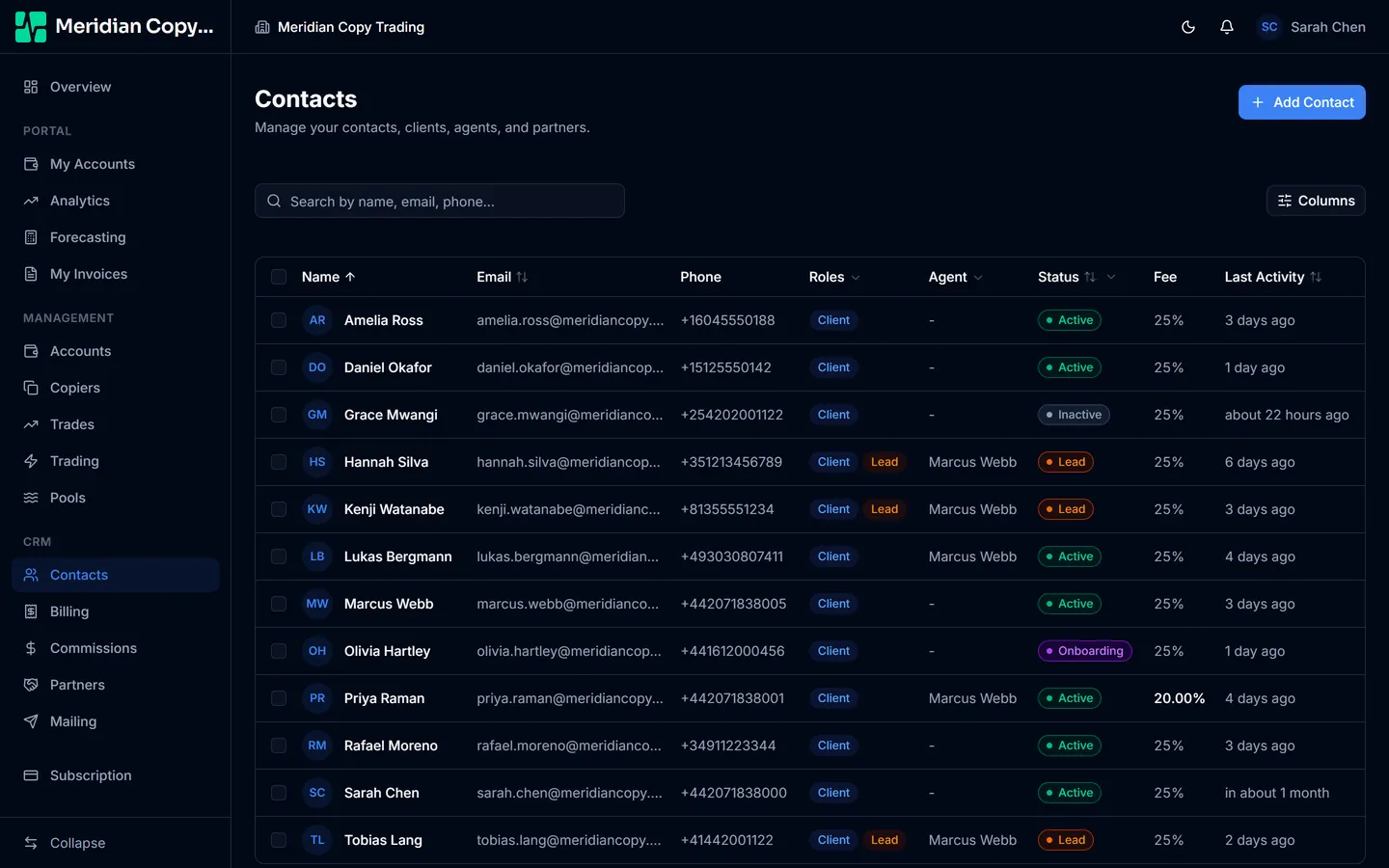
Everyone you add to a workspace — administrators, agents, and clients alike — is a contact, so bringing people in needs the CRM add on add-on. Without it there is no Contacts screen and the workspace owner is its only member. Enable CRM under Settings → Modules before you start.
Add someone
- Open Contacts and choose Add Contact
Contacts lives in the main navigation.
- Pick at least one role
Client, Agent, and Partner are toggles, and you must choose at least one. They are not exclusive — an agent who also trades their own account gets both.
- Fill in the details
Email and display name are the essentials; phone, mobile, and address are optional. Choosing Client reveals client-specific fields: the agent they are assigned to, their status, a fee override, and the date they became a client.
- Save
The contact record is created immediately, along with a login for that email address. No email is sent yet.
Send them their login
Creating a contact does not email anyone. That is deliberate — you can build the list first and invite when you are ready.
To invite: tick the contacts in the list and choose Setup Account from the bar that appears. That enables portal access and sends each of them a welcome email with a link to set their own password.
The same action re-sends to anyone who has not logged in yet, so it is also the fix for "I never got the email".
Make someone an administrator
Admin is not one of the three toggles on the create form — it is granted after the fact, and only an owner or an existing admin can grant it.
- Open the contact
Click through from the Contacts list.
- Choose Manage Roles
A dialog lists every role available for this person.
- Turn on Admin
Described in the dialog as "Full access to manage the tenant".
The same dialog turns roles off again, and turning off an agent role prompts you to reassign that agent's clients to someone else first.
The Owner is the account created at signup. It cannot be switched off, and an owner cannot have their admin role removed — there is always exactly one account that can undo everything else.
Which roles are available
Some roles only mean something when the matching add-on is enabled, so they are hidden otherwise:
| Role | Requires |
|---|---|
| Owner, Admin | Always available |
| Client | CRM add on |
| Agent, Partner | Commissions add on |
A workspace with no CRM has no contacts, so there is nobody a Client role could describe; a workspace with no Commissions has no payout structure, so Agent and Partner have nothing to attach to.
What each role can actually do is covered in Roles and permissions.